HomeGuidesDoorDash Photo Requirements

DoorDash Photo Requirements

Meet every DoorDash menu photo spec and clear review on the first try.

  • The exact specs: 1400 x 800 px minimum, 16:9 landscape, under 2 MB
  • Every rejection reason DoorDash lists, each with a concrete fix
  • How the 16:9 thumbnail crop works and how to frame for it
  • One photo set you can reuse across DoorDash, Uber Eats, and more
  • A pre-upload checklist that catches problems before you submit

Updated July 2026

On this page

The short version

The specs: at least 1400 x 800 pixels, 16:9 landscape only, and under 2 MB.

The usual problem: the image has the wrong dimensions or aspect ratio, or the source is too dark, blurry, or poorly framed to pass review.

The fastest fix: return to the largest original, correct light and color, crop it horizontally to 16:9, then export at the required resolution below 2 MB.

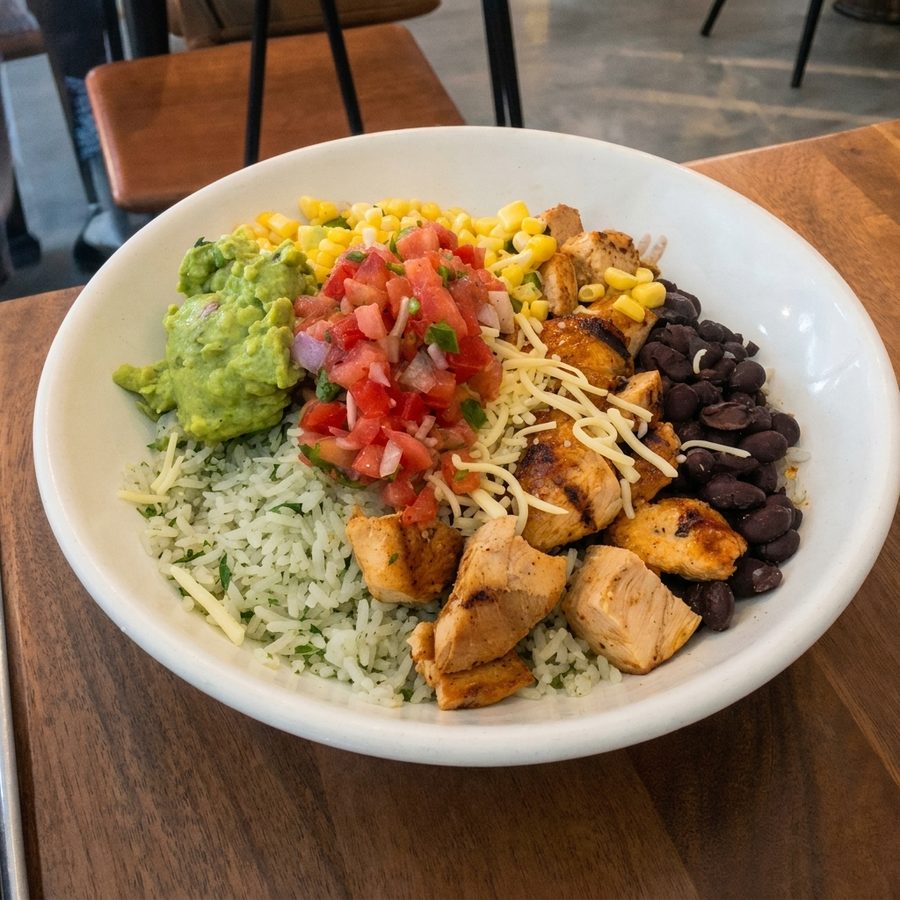
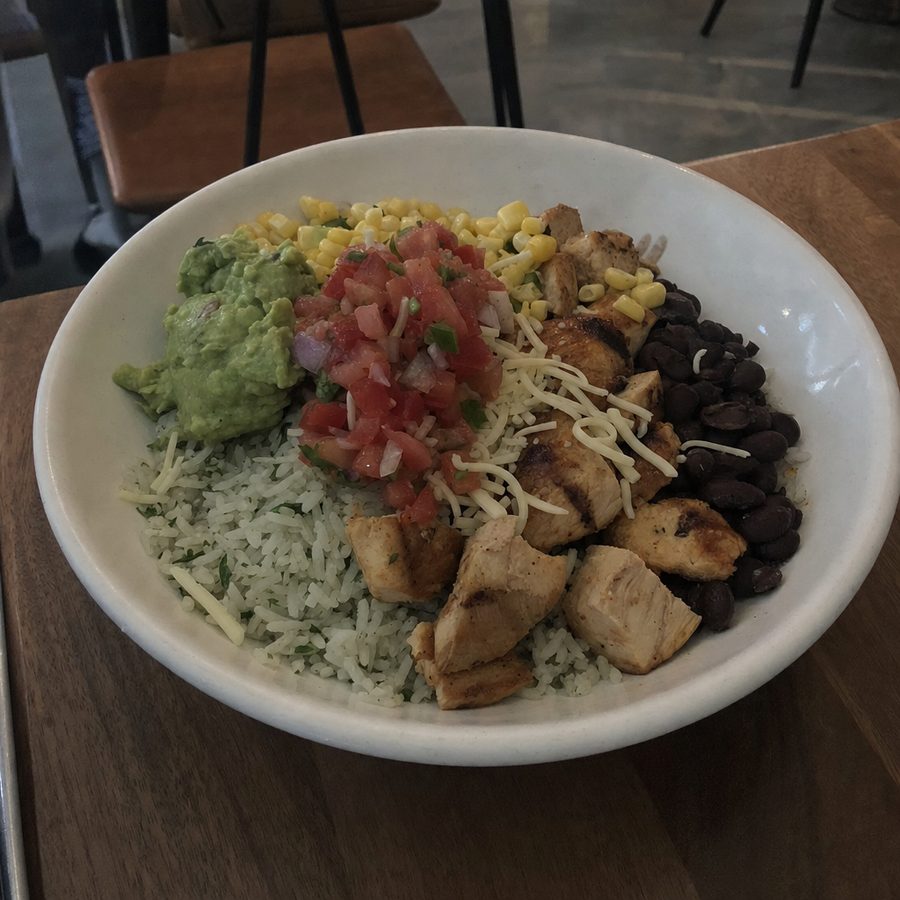
Before
After
After
Before
Drag to compare a dark, low-contrast phone photo of a burrito bowl with the same bowl cleanly relit and brightened into an appetizing menu-ready photo

DoorDash photo specifications as of July 2026

These are the published requirements for item photos. Because DoorDash displays photos as cropped thumbnails in some contexts, shoot horizontally and keep the dish clear near the center of the frame.

RequirementDoorDash specification
Minimum resolution1400 x 800 px
Aspect ratio16:9 landscape only
Maximum file size2 MB
File formatDoorDash accepts standard image uploads through the Merchant Portal; check the current DoorDash guidelines for accepted file types.
OrientationHorizontal

Specs verified against DoorDash's Merchant Help Center as of July 2026.

How the 16:9 thumbnail crop works

DoorDash shows menu photos as small landscape images in the listing. The same 16:9 file that looks clear at full size can lose important detail when it is scaled down and cropped for a thumbnail. That is why DoorDash asks for the dish to be centered and for the food to fill the frame.

Treat the area near the edges as a practical safe margin. Keep the main dish, defining garnish, and included sides well inside the frame so a center crop does not clip something customers need to recognize. At the same time, leave a little breathing room around the food instead of filling every pixel. This gives the composition room to survive a smaller display.

Shoot horizontally from the start. Cropping a vertical or square photo to 16:9 usually forces you either to cut into the dish or to leave dead space around it. DoorDash does not accept vertical or square menu photos, so starting with a landscape composition avoids that compromise.

Before uploading, view the final export at a small size. If you cannot quickly recognize the dish or distinguish its defining details in the thumbnail, reframe the original or reshoot it. That check is more useful than uploading a weak crop and waiting for review. DoorDash defines composition, cropping, and resolution in its Menu Photo Terms glossary.

Rejection reasons and fixes

DoorDash lists technical, visual, authenticity, and rights-related reasons for rejecting photos. Work from the rejection notice, but check the full list before resubmitting so a second issue does not stop the next version.

1. Wrong size or resolution

Export at a minimum of 1400 x 800 pixels. Do not enlarge a tiny source image until it looks soft. Return to the original photo, crop it first, then export a clean version. If the file was already rejected, follow the steps in the DoorDash rejection fix guide.
2. Too zoomed in or too far out

Show the complete dish with useful space around it. A tight crop can cut off the food when DoorDash displays a thumbnail. A distant crop makes the item hard to recognize. Reframe from the original rather than stretching the exported file.

3. Framing or aspect ratio issue

Crop to 16:9 landscape before upload. Vertical and square images are not accepted. Keep the main dish near the center and avoid placing important garnishes or sides against an edge where thumbnail cropping may remove them.

4. Poor lighting

Use soft, even light that shows the food clearly. Correct an image that is too dark without washing out pale ingredients or creating harsh highlights. The dark food photo guide covers exposure fixes, while the yellow food photo guide covers warm restaurant color casts.

5. Background issue

Use a clean, simple background that does not compete with the dish. Remove visible clutter, dirty surfaces, unrelated packaging, and objects that make the item difficult to identify. Keep the result believable for your restaurant.

6. Overlays, borders, or watermarks

Remove added text, prices, promotional badges, frames, logos, and watermarks. DoorDash wants a clear food image rather than an advertisement. Keep menu names and pricing in the menu fields provided by the platform.

7. People in the photo

Crop people, faces, and bodies out of the frame. If the original cannot be cropped cleanly without cutting off the dish, take another horizontal photo with the food alone.

8. Photo does not represent the item

Match the photo to the exact menu listing. The portion, included sides, toppings, packaging, and visible ingredients should reflect what the customer receives. Update the image when the recipe or presentation changes.

9. Photo is out of focus

Start with the sharpest original available. Mild cleanup can help, but it cannot restore detail that the camera never captured. Retake severe blur with a steady phone and good light. See the blurry menu image guide for a practical check.

10. Copyright issue

Upload a photo your restaurant owns or has clear permission to use. Do not copy a photo from another restaurant, a search result, a marketplace, or a photographer without the necessary usage rights.

11. Duplicate photo

Use a distinct photo for each distinct listing. Reusing one image for different dishes can confuse customers and trigger a duplicate-image rejection. Photograph variants separately when they look materially different.

12. Stock or third-party image

Use a real photo of the food your restaurant prepares. Do not use stock photos, images copied from websites, or third-party images. An accurate phone photo is a better source than a polished image of a different dish.

Source: DoorDash, Why Your Menu Photos Were Rejected.

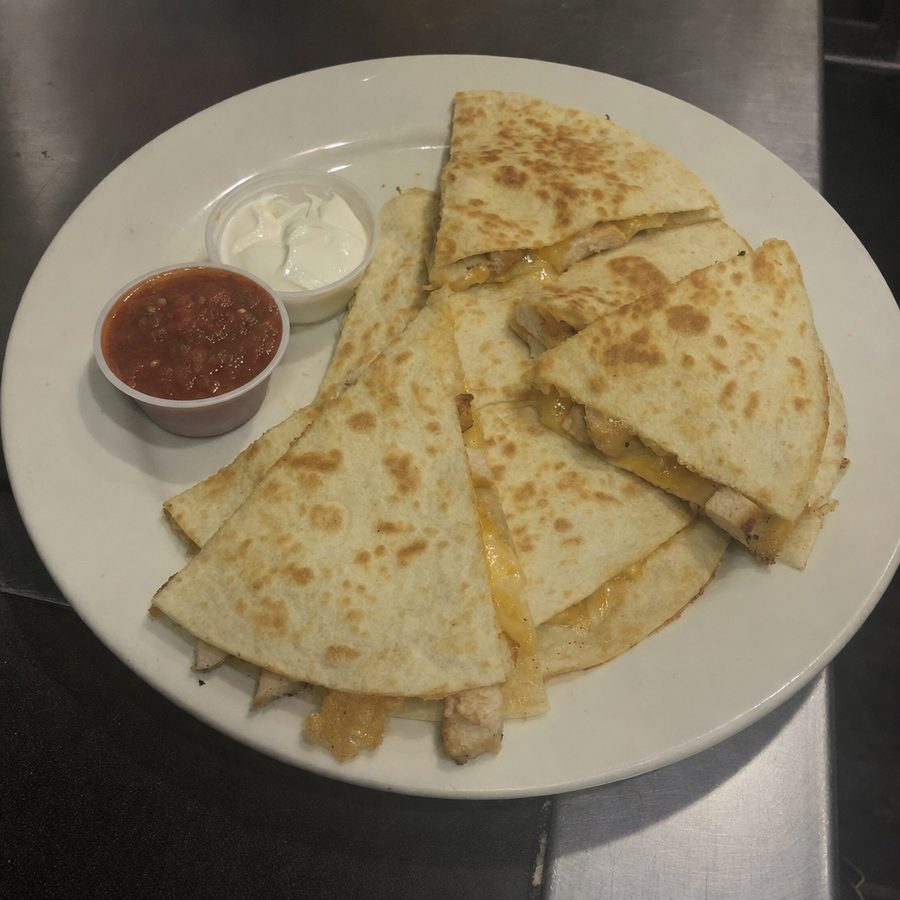
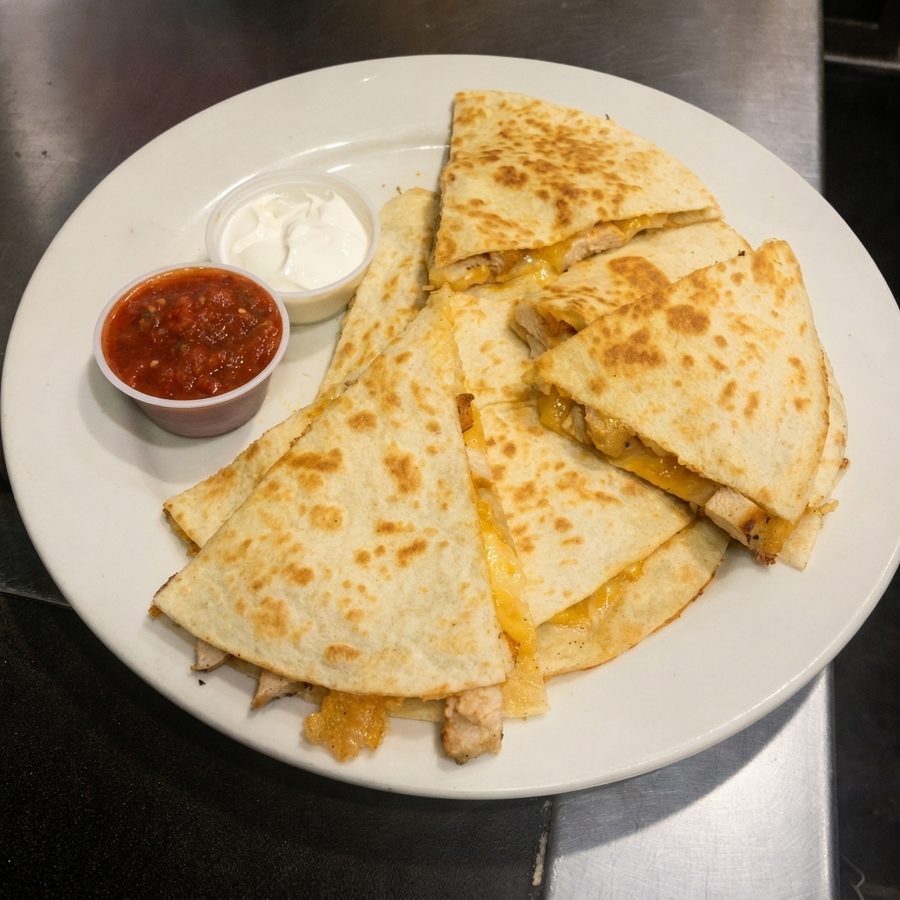
Poor lighting is one of the most common rejection reasons. A dark, low-contrast phone photo of quesadillas clears review once the exposure and color are corrected.

Before

Quesadillas photographed in dark, low-contrast kitchen light, the kind of dim photo DoorDash rejects

After

The same quesadillas after brightening and color correction, the plate and its salsa and sour-cream dips unchanged, for a clear menu photo

Review, resubmission, and the appeal gap

DoorDash reviews menu photos before they appear on a store page. DoorDash does not publish a review turnaround on the cited Merchant Help Center pages, so a promised number of hours or days would be misleading.

If a photo is rejected, check the reason shown in the Merchant Portal. Correct that specific problem, verify the resolution, ratio, file size, and content again, then resubmit. Keep the untouched original so you can make another crop without repeatedly compressing the same file.

The public guidance describes correction and resubmission, but it does not set out a separate photo appeal timeline. If the reason appears incorrect after you compare it with the current rules, use DoorDash merchant support and provide the original file, the rejected export, and the rejection message.

DoorDash explains its terminology in the Menu Photo Terms glossary.

One photo set, every platform

A portable photo set starts with high-resolution horizontal originals that your restaurant owns. Keep those originals separate from platform exports. You can then crop and compress a fresh copy for each delivery service instead of photographing the menu again.

Requirements differ, so do not upload one export everywhere without checking it. Compare the Uber Eats photography guide, PedidosYa photo requirements, and the broader delivery platform photo requirements before preparing each batch. For the business decision behind those exports, use the Uber Eats versus DoorDash owner comparison, then review how to get more orders on DoorDash for the broader menu strategy.

There is an important rights limitation for DoorDash's free photoshoot program. According to DoorDash, photos from that shoot may appear on your DoorDash store page and your restaurant's own website and social channels, but they cannot be used on other third-party delivery platforms. If you need the same images across several marketplaces, maintain a separate set that your restaurant can reuse.

Shoot it during service, use it everywhere

A DoorDash upload does not need its own project. MenuCapture turns a photo you already take into a listing-ready image, so one plate covers every channel.

  • Shoot the plate during prep or a normal service, right at the pass
  • Upload the phone photo from your phone or your laptop
  • Get a clean, menu-ready image back in about a minute
  • Use the one image on your print menu, DoorDash, Uber Eats, Google Business Profile, and Instagram

When DoorDash's free photoshoot beats doing it yourself

According to DoorDash, merchants can book a free professional photoshoot through the Merchant Portal where the program is available. A photographer visits the restaurant and photographs menu items. Images are delivered within about two business days. Your restaurant supplies the prepared food, while DoorDash covers the photographer and image processing.

The program is a good fit when you want professional images for a stable menu and can schedule the visit. Availability depends on the area, and DoorDash says the offer generally targets stores that do not already have professional images.

Doing it yourself or using an editing tool is more practical when you need photos now, change the menu often, or need rights that allow the same images on several delivery platforms. The free DoorDash shoot has value, but its restriction on other third-party platforms matters when portability is part of your plan.

Check eligibility and current terms on the DoorDash free photoshoots page.

Pre-upload checklist

Technical

  • At least 1400 x 800 px
  • 16:9 landscape
  • Horizontal orientation
  • File under 2 MB
  • Sharp focus
  • Correct exposure and color

Content

  • One dish clearly centered
  • No people
  • No text, borders, logos, or watermarks
  • Clean background
  • The photo matches the exact menu item and current recipe and portion

Rights and housekeeping

  • The photo is one your restaurant owns or has rights to use
  • No stock or third-party images
  • Each listing uses a distinct image
  • Keep the untouched high-resolution original for future crops

Running this list before upload avoids most of the rejection reasons DoorDash lists.

Photographing for DoorDash by dish type

Dishes render inside a small 16:9 listing image, so a few choices per category help the food read clearly at that size.

Burgers and sandwiches

Shoot at a slight downward angle so the fillings and height show. Keep the build tight in frame. A clean cut or a whole stacked build both work if the layers are visible at thumbnail size.

Soups and bowls

For ramen, rice bowls, and other bowls, shoot from a higher angle so the contents are visible rather than a flat liquid surface. Add a garnish or protein on top so the bowl is not a single color. Keep steam and reflections from hiding the food.

Pizza

A whole pie fills the 16:9 frame well. Either a full top-down pie or a pulled slice showing the cheese works. Make sure toppings are identifiable rather than forming a uniform surface.

Drinks

Use a clean, simple background so the glass and color stand out. Keep condensation and garnish visible. A single hero drink reads better than a cluttered group.

Desserts

Capture texture and layers at a slight angle. A clean plate and a small garnish keep attention on the item. Avoid busy props that shrink the food in the thumbnail.

Which items to photograph first

Aim for a photo on every item over time. A listing without an image gives the customer less information to act on when deciding what to order.

Start with best sellers and signature dishes because they define the menu and are already likely to attract attention. Photograph high-margin items next so customers can see the dishes that matter most to the restaurant, then work through the rest of the menu.

Keep photos current when a recipe or plating changes so the image still represents the item. Accurate representation is a DoorDash photo requirement.

Frequently asked questions

DoorDash menu photos must be at least 1400 x 800 pixels. They must use a 16:9 landscape aspect ratio, and the file must be under 2 MB.

No. DoorDash accepts landscape 16:9 menu photos. Square and vertical photos are not accepted. Start with a horizontal photo and leave enough room around the dish for thumbnail cropping.

The maximum file size is 2 MB as of July 2026. If a file is larger, resize or compress it while keeping the resolution at or above 1400 x 800 pixels.

DoorDash accepts standard image uploads through the Merchant Portal, but its cited help pages do not publish one definitive file-format specification. Check the current DoorDash guidelines before exporting your files.

DoorDash does not publish a photo review turnaround on the cited Merchant Help Center pages. Check the Merchant Portal for the current status and any rejection reason.

Common reasons include the wrong size or framing, poor lighting, blur, distracting backgrounds, overlays, people, duplicate or stock images, copyright problems, or a photo that does not accurately represent the menu item.

Yes. Review the rejection reason, correct that issue, and resubmit the photo through the Merchant Portal. Check every technical and content requirement before uploading it again.

According to DoorDash, eligible merchants in participating areas can book a free professional photoshoot through the Merchant Portal. The restaurant supplies the food, and DoorDash covers the photographer and image processing.

No. According to DoorDash, those images may be used on your DoorDash store page and on your restaurant website and social channels, but not on other third-party delivery platforms.

Share this guide

Prepare a consistent set of menu photos

MenuCapture helps restaurants clean up, crop, and export existing dish photos for menu listings.

View pricing