DoorDash Rejected My Photo
Here's How to Fix It
DoorDash photo rejections are common but fixable. Some photos fail instantly at upload because of the file itself. Others pass the upload, then get pulled after DoorDash's moderation review looks at the content. Find your rejection reason below and get your menu photo approved. Most issues take under 5 minutes to fix.
- See the exact 2026 DoorDash photo specs in one box
- Compare DoorDash and Uber Eats requirements side by side
- Understand the two-layer moderation behind silent rejections
- Fix background, crop, text, and format issues in about 30 seconds
On this page
DoorDash Photo Requirements (2026)
NOT Allowed:
- Price tags
- Watermarks
- Text overlays
- Brand logos
- Stock photos
- AI-generated food
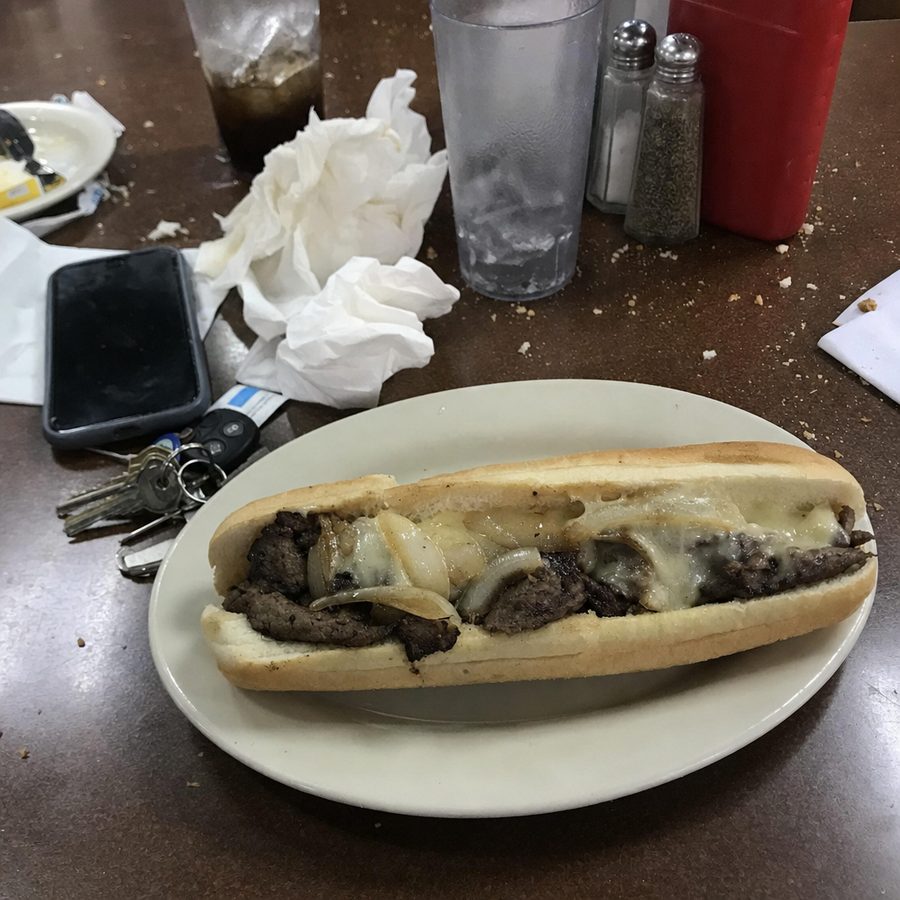
Before
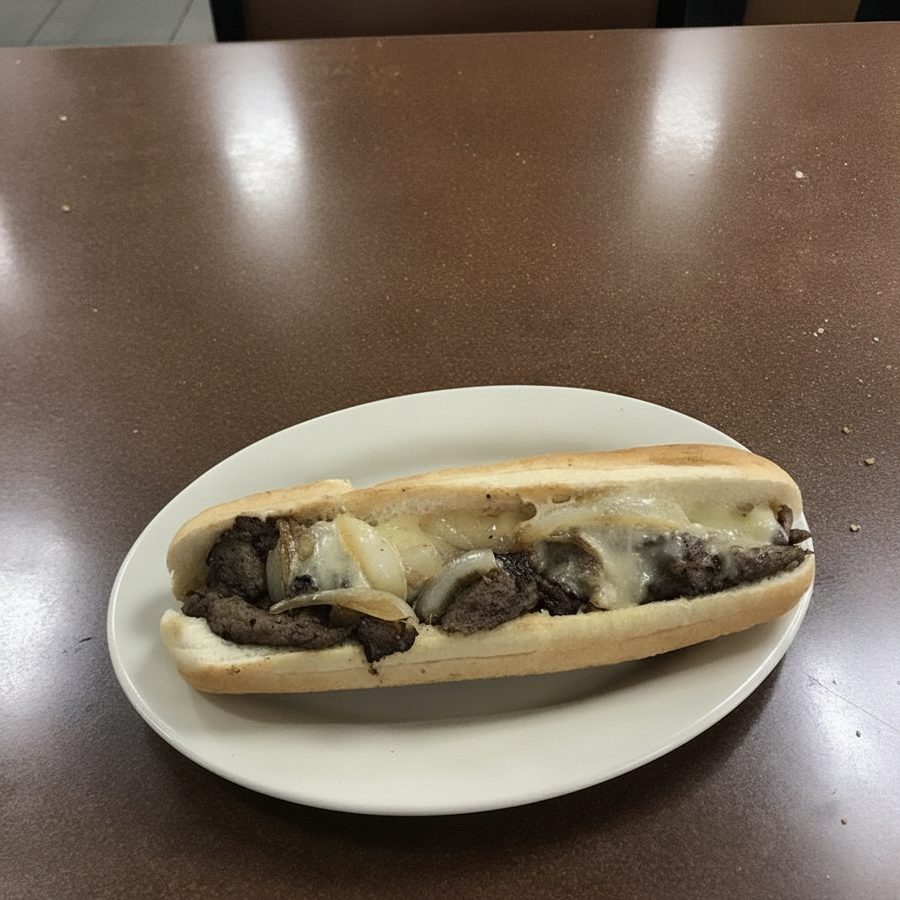
After
DoorDash vs Uber Eats Requirements
Already have photos for Uber Eats? Here's how DoorDash requirements differ.
| Requirement | Uber Eats | DoorDash |
|---|---|---|
| Minimum Width | 550px | 1400px |
| Minimum Height | 440px | 800px |
| Aspect Ratio | 5:4 to 6:4 | 16:9 landscape |
| Max File Size | 10MB | 2MB stated, 16MB accepted |
| File Formats | JPG, PNG, GIF | JPG, PNG |
Key Difference: DoorDash requires a wide 16:9 landscape crop at 1400x800 minimum, while Uber Eats accepts near-square ratios between 5:4 and 6:4. A photo framed for Uber Eats usually needs a new, wider crop for DoorDash. Keep the dish centered, since the DoorDash app displays a 1:1 center crop.
How DoorDash Photo Moderation Actually Works
Understanding what happens after you hit upload makes rejections much less mysterious. DoorDash runs photos through two layers of review. The first is automated: software checks the file format, dimensions, and basic image quality signals like sharpness and brightness. This layer produces the instant failures. The second layer reviews content against DoorDash's listing standards: does the photo show a single dish, is the framing usable, is there text or a logo in the frame, does it look like a real photo of real food.
This two-layer system explains the most confusing rejection pattern: a photo that uploads without complaint, shows on your menu for a day or two, then quietly disappears. The automated layer passed it, the content review did not. When that happens, the fix is never about the file. It's about what's in the frame.
The full list of what DoorDash's content review looks for, including cover photos, logos, and header images, is in our DoorDash photo requirements guide. This page focuses on getting a rejected photo back up.
Rejected Under the "Live Photo Mandate"? What DoorDash Actually Requires
Merchants search for a DoorDash "live photo mandate," but no policy with that name exists. What people are running into is DoorDash's real-photo authenticity requirement. Its merchant guidance says to use real photos of your actual item, not clip art, illustrations, or stock graphics, and that the image must reflect the actual item served, not an idealized or generic version. This is an ongoing content standard enforced through photo moderation, not a dated one-time rollout. Photos also need to be images you own the rights to, so a photo borrowed from another listing fails on two counts.
The AI line is narrower than most merchants assume. Images that look artificial, fully AI-generated, or edited so heavily they no longer represent the real dish get rejected. Light enhancement that keeps the dish accurate is accepted; DoorDash itself now offers AI retouching tools that relight and sharpen a photo without changing what's on the plate. Brightening a dark shot, correcting a yellow cast, or cleaning up a cluttered background is fine. Replacing the food itself is not. Keep your unedited originals as proof the photo is real if a listing is ever questioned.
Two unrelated DoorDash programs feed the "live photo" confusion. One is an optional program where Dashers can snap a couple of menu photos while waiting for an order, to fill gaps in listings; restaurants can decline it. The other is the rule that Dashers photograph "Leave at my door" drop-offs, which is proof of delivery and has nothing to do with your menu photos.
Real photo, enhanced: fine. Fake photo, polished: rejected. If you start from a genuine photo of your own dish, enhancement tools like MenuCapture keep you on the right side of this rule while fixing the quality problems that cause the other rejections on this page.
Why Did DoorDash Reject My Photo?
Find your issue below. Click to expand for specific fix instructions.
Photo Too Small
DoorDash requires minimum 1400x800 pixels. Screenshots, cropped photos, or images from older phones often fall short.
AI can fix
Photo Too Small
DoorDash requires minimum 1400x800 pixels. Screenshots, cropped photos, or images from older phones often fall short.
1How to Check
On iPhone: Open photo > swipe up > see dimensions. On Android: Open in gallery > tap info or details icon.
2How to Fix
Reshoot using your phone's main camera app. Avoid using screenshot features or heavily cropping images.
AI Note: AI can upscale images, but results depend on original quality. Reshooting produces better results.
Blurry or Out of Focus
Motion blur, camera shake, or focus on the wrong area. DoorDash wants customers to see clear food details.
Reshoot needed
Blurry or Out of Focus
Motion blur, camera shake, or focus on the wrong area. DoorDash wants customers to see clear food details.
1How to Check
Zoom in to 200% on your photo. If edges are fuzzy or you see double lines, it's blurry.
2How to Fix
Tap the food to focus before taking the shot. Hold your phone with both hands or rest it on a surface. Good lighting helps too.
AI Note: AI cannot recreate sharp details from a blurry image. You'll need to reshoot.
Wrong Aspect Ratio
DoorDash only accepts landscape 16:9 for menu items. Portrait and square photos are rejected, and the app shows a 1:1 center crop, so keep the dish centered.
AI can fix
Wrong Aspect Ratio
DoorDash only accepts landscape 16:9 for menu items. Portrait and square photos are rejected, and the app shows a 1:1 center crop, so keep the dish centered.
1How to Check
Use our Platform Checker to instantly verify your aspect ratio matches DoorDash requirements.
2How to Fix
Shoot in landscape mode (phone horizontal). Most phone cameras default to 4:3, so crop to 16:9 with the dish centered.
AI Note: AI can intelligently extend your image to achieve the correct aspect ratio without distortion.
Text, Prices, or Logos Visible
Menu prices, promotional text, watermarks, or business logos in the food photo. DoorDash handles pricing separately.
AI can fix
Text, Prices, or Logos Visible
Menu prices, promotional text, watermarks, or business logos in the food photo. DoorDash handles pricing separately.
1How to Check
Look carefully at your image for text, numbers, or brand marks anywhere in the frame.
2How to Fix
Reshoot without price cards or printed materials in frame. Remove branded items like napkins with logos.
AI Note: AI can remove text and logos, filling in the background naturally. Works well for watermarks.
Cluttered or Unprofessional Background
Visible clutter, personal items, other food orders, receipts, or competing brand materials.
AI can fix
Cluttered or Unprofessional Background
Visible clutter, personal items, other food orders, receipts, or competing brand materials.
1How to Check
Look at everything around your food: kitchen equipment, hands, receipts, other dishes, personal belongings.
2How to Fix
Clear the area completely before shooting. Use a clean plate on a neutral surface (white, wood, marble).
AI Note: AI can replace backgrounds with clean, professional surfaces. Your food stays, clutter goes.
Wrong File Format
DoorDash accepts JPG and PNG. HEIC (iPhone default since iOS 11), WebP, TIFF, or RAW files won't upload.
AI can fix
Wrong File Format
DoorDash accepts JPG and PNG. HEIC (iPhone default since iOS 11), WebP, TIFF, or RAW files won't upload.
1How to Check
Check your file extension (.heic, .jpg, .png). iPhones often save as HEIC by default.
2How to Fix
Convert to JPG before uploading. iPhone: Settings > Camera > Formats > Most Compatible.
AI Note: MenuCapture automatically outputs JPG format compatible with all delivery platforms.
Photo Doesn't Match Food Served
Stock photos, heavily edited images, or AI-generated food that doesn't represent your actual dishes.
Reshoot needed
Photo Doesn't Match Food Served
Stock photos, heavily edited images, or AI-generated food that doesn't represent your actual dishes.
1How to Check
Does the photo accurately show what a customer receives? Same portion size, presentation, garnishes?
2How to Fix
Use real photos of your actual food, plated exactly as you serve it. Edit for lighting and color, not content.
AI Note: Only use AI for editing real photos. Using AI-generated food images can get your account suspended.
File Too Large
DoorDash states a 2MB target on its guidelines page, and item photos are accepted up to 16MB. High-resolution DSLR photos can exceed even that.
AI can fix
File Too Large
DoorDash states a 2MB target on its guidelines page, and item photos are accepted up to 16MB. High-resolution DSLR photos can exceed even that.
1How to Check
Check file size in your photo details. Most phone photos are 2-5MB. DSLR images can be 20MB+.
2How to Fix
Compress the image using your phone's editor or resize it slightly. Don't compress too much, quality matters.
AI Note: MenuCapture optimizes file size while maintaining quality, keeping outputs well within DoorDash's limits.
Poor Image Quality
Excessive noise, compression artifacts, over-processing, or low resolution even if dimensions are correct.
AI can fix
Poor Image Quality
Excessive noise, compression artifacts, over-processing, or low resolution even if dimensions are correct.
1How to Check
Look for grainy textures, blocky areas, or halos around edges. Excessive phone filtering can cause this.
2How to Fix
Use your phone's default camera settings. Avoid extreme filters. Good lighting reduces noise dramatically.
AI Note: AI can reduce noise and artifacts in many cases. Severely compressed images may need reshoot.
Quick Fix Guide
| Problem | Solution | Time |
|---|---|---|
| Photo dimensions too small | Reshoot without cropping, don't upscale | 2 min |
| HEIC format (iPhone default) | Convert to JPG or change iPhone settings | 30 sec |
| Messy background visible | Use AI to replace background | 30 sec |
| Price tag or watermark showing | Crop out or use AI removal | 30 sec |
| Photo looks dark or dim | Brighten with AI or phone editor | 30 sec |
| Wrong aspect ratio | Crop to 16:9 or use AI extension | 30 sec |
Fix Most Issues in 30 Seconds
Don't want to reshoot? MenuCapture fixes many common DoorDash rejection reasons automatically:
What AI Can Fix
- Extend to correct 16:9 aspect ratio
- Remove text, prices, and watermarks
- Replace messy backgrounds
- Correct dark or yellow lighting
- Optimize file size and format
- Reduce noise and artifacts
What Needs a Reshoot
- Blurry or out-of-focus photos
- Motion blur from camera shake
- Heavily compressed originals
- Food that looks unappetizing
- Wrong dish or portion shown
How to Upload Fixed Photos to DoorDash
- 1
Log in to DoorDash Merchant Portal
Go to merchant.doordash.com and sign in to your restaurant account.
- 2
Navigate to Menu Management
Click "Menus" in the left sidebar, then select the menu with the rejected photo.
- 3
Find the Item and Replace Photo
Locate the menu item, click to edit, and upload your fixed photo.
- 4
Save and Wait for Approval
Save your changes. DoorDash typically reviews photos within 24-72 hours.
Frequently asked questions
Typically 24-72 hours, though it can take up to 5 business days during busy periods. Make sure your photo meets all requirements before re-uploading to avoid another rejection.
DoorDash uses automated systems that check multiple requirements at once. Rejection messages are often generic. Use our Platform Checker to diagnose the specific technical issues with your photo.
Often yes, but check the requirements. DoorDash needs at least 1400x800 in 16:9 landscape, while Uber Eats accepts photos from 550x440 up with an aspect ratio between 5:4 and 6:4. If your photo exceeds both size minimums, you may just need to adjust the crop for each platform.
Beyond obvious issues, check for subtle problems: small text in the background, partial logos on napkins or plates, prices visible on menus in frame, or reflections showing inappropriate content. Also verify your file format is JPG or PNG, not HEIC.
Not under that name. The real policy is an authenticity requirement: menu photos must be real photos of the actual item you serve, that you own the rights to. Editing is allowed as long as the dish stays accurate. What gets rejected is stock imagery, photos taken from other listings, and AI-generated or heavily AI-altered food that no longer represents the real dish.
Not quite. An instant failure means the file itself was refused: wrong format (usually HEIC from an iPhone), over 16MB (DoorDash's stated target is 2MB), or below the 1400x800 minimum. A rejection after review means the file was fine but the content wasn't. Instant failures are fixed by converting or resizing the file. Review rejections need a change to what's in the frame.
DoorDash doesn't publish a specific limit, but repeatedly submitting the same rejected photo without fixes may flag your account. Fix the issue properly before resubmitting. If you're unsure, use our Platform Checker first.
Keep reading
DoorDash Photo Requirements
Current DoorDash menu photo specs, rejection reasons, and how to fix them.
Fix a Rejected Uber Eats Photo
Correct the issues that get Uber Eats menu photos rejected in review.
Fix Blurry Menu Photos
Why menu photos come out blurry and how to sharpen them.
Delivery Platform Photo Requirements
Photo specs for every major delivery platform, compared side by side.
Don't Lose Orders to Photo Rejections
Every day without a menu photo is a day customers can't see your dish. Fix the issue now and get back to selling.
Fix My Rejected Photo